
Mac app · made for point-and-click
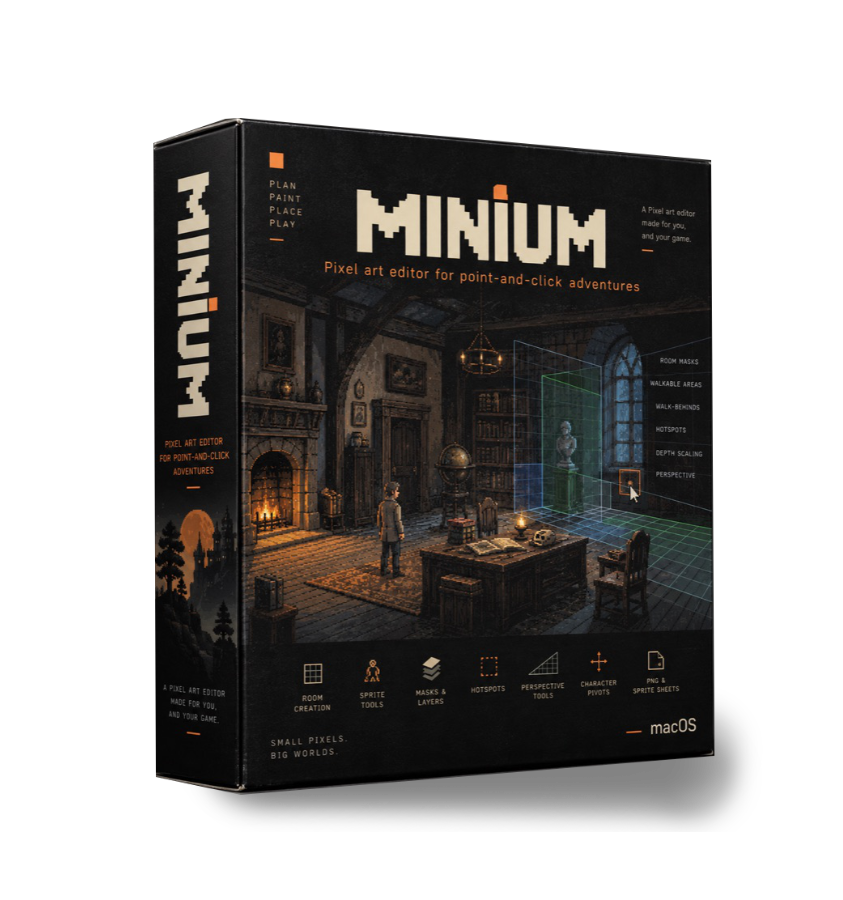
A Pixel art editor made for you, and your game.
Walkable areas, walk-behinds, hotspots, depth scaling, a horizon and other specialized features for adventure games make it as smooth as possible to get your art into your game. Export PNGs, sprite sheets, whatever your game engine needs.
Layout of the app is familar and right at home with other well-known art app, with some customization including themes.
Numbers, not colors
A mask stores a number. Your engine reads area 3 — not "that greenish one".
The room is the thing you're working on
Horizon, walkable areas, screen marker, character pivot. All undoable, all saved in the file.
Menus aren't hidden
The size of the picture lives in the Image menu. The Eyedropper is called the Eyedropper.
The stuff other editors don't do
Six things an adventure room needs.
Room masks that actually export
Four kinds: walkable area, walk-behind, hotspot, region. Name any area you like — Door, Window, behind the counter — and the names go out with the numbers.
Masks are excluded inside composite itself, so there's no way to forget one and find it baked into your background.
cantina-walkable.png
cantina-walkbehind.png
cantina-hotspot.png
room.json — baselines, scaling, area names
Walk-behinds carry a baseline
Feet below the line and he's in front of the pillar. Above it and he's behind it. Without one he just walks straight through.
It defaults to the bottom of whatever you painted, which is usually what you want anyway. Drag the dashed line, or type the row.
A walkable area, a hotspot on the door, a walk-behind on the pillar. The options bar swaps itself out for an area picker whenever a mask layer is active.
Depth scaling, tied to the horizon
Set a far and a near percentage on a walkable area and everything in between gets interpolated. An area with nothing set says no scaling instead of pretending it's 100%.
Your eye level already implies that ramp, so you can make the two halves of the room agree:
Perspective, and a line tool that snaps to it
Presets named after rooms instead of geometry: a corridor, a corner, a tower. The vanishing points start a canvas and a half out on either side — any closer and you get that bulged wide-angle look that reads as a mistake.
Drag roughly along a ray and the line lands on it exactly, keeping the length you gave it. Hold ⌥ and the snap is off for one stroke.
Two-point, horizon at row 92. The rays go through evenly spaced points around the border rather than by even angle, which would bunch them all into one corner.
The character pivot
The point your engine positions the sprite by. Starts at center-bottom, drag it wherever. It's drawn as a ring and a cross so you can still see the pixel you're aiming at.
It goes out in the sheet JSON, scaled with the sheet — a ×2 export gives you a ×2 pivot.
Pixel Perfect freehand
That doubled pixel you get at an L-shaped turn gets pulled back as you draw, so a hand-drawn 2:1 diagonal comes out with even two-pixel steps.
It runs while you're drawing, not as a cleanup pass afterwards, so the preview is already the thing you're going to get.
One room, start to finish
Five steps, in order.
Start at a size that scales
Engine targets, not hardware sizes. 320×180, 384×216, 480×270 and 640×360 all scale up to 1920×1080 by a whole number.
Lay the eye level down
It starts a third of the way down, which is about where an adventure room usually sits. Drag it, type the row, or pull it from an area's scaling.
Paint the room to it
Rays under the guides, a line tool that snaps to them, symmetry, tiled mode, and a reference image the eyedropper can read.
Write the masks over it
Paint your areas, name them, set baselines and scaling. A flatten keeps them. A merge refuses to mix a mask with art.
Check it with a stand-in
Depth Preview (⌥⌘D) drops a figure wherever your pointer is, at the scale that row gives it, labeled with the height it ends up.
Depth Preview. It's a silhouette rather than real art on purpose — the only question here is whether the scaling reads.
Characters
A walk isn't one animation. It's four. Or eight.
New View lays the whole thing down for you: name it, pick four or eight facings and a length, and it makes the frames and tags every loop.
The facings come in the order engines number their loops — down, left, right, up, then the diagonals — so a view exports in the order the thing reading it expects.
The hard part
The hard part is getting them to agree.
The facing reference (⇧F3) ghosts the matching frame from another facing behind the one you're drawing. Onion skin looks along the timeline. This one looks across it.
Three of the eight are somebody else's mirror, which is why an eight-way walk is really five drawings.
The sheet gives you one row per facing, and the JSON next to it carries the grid, the durations, the loops, the pivot and the pixel aspect ratio.
Four loops of eight, tagged with their facings. Loops are just ordinary tags with a facing attached to them.
Also in the box
The boring half, done right.
Pixel aspect ratio
Square, 5:6, 2:1, 1:2, or type your own. The canvas, preview, grid, guides and rulers all stretch together.
Reference image
Sits behind the canvas so you can work against it. Never part of the sprite, and the eyedropper reads it wherever the sprite is transparent.
Room viewport
One screen's worth of a scrolling room, dimmed outside. A 960×270 room means you're painting three screens.
Transform
Resampled from the original every time, never from the last result. A quarter turn happens in whole pixels. One undo entry.
Shading that stays in palette
The shading tool steps along the color's own ramp instead of inventing new colors for you.
Layer export
The ones you picked, every visible one, or all of them. As a single image or a file each. A group counts as one.
Frame export with options
Which frames, the separator, the digits, the first number. Named by loop, and each facing counts from the start: walk-down-01, walk-left-01.
Guides, grid and tiled mode
Guides dragged off the rulers, a grid you can configure, tiled mode, and symmetry on either axis or both.
Four themes
Ember, Dark, Light and Midnight. The checkerboard stays neutral in all of them, because it stands for nothing being there.
Questions
Before you buy it.
Apple silicon and Intel
Swift / SwiftUI, nothing to install
Documents are .minium
1975 assertions in the test suite
23-page user guide
- Which engine does it export for?
- None in particular. Masks come out as PNGs named after the document and the mask, plus a JSON with the numbers a PNG can't carry. AGS, Godot, Unity, or whatever you've built yourself.
- Can masks end up in my background PNG?
- No. They're excluded inside composite itself, so they can't reach an export, the preview, a flatten or a trim.
- What if I painted the room before working out the perspective?
- Grab a walkable area and hit Horizon from this. The two sizes you drew a character at are enough to say where the eye level goes.
- Is the pixel art in these screenshots real game art?
- The room is a blocky stand-in. The character isn't — that's real sprite art, exported straight out of Minium. And the editor around them is recreated from the app's own source: same colors, same widths, same labels.
Who makes it
The man behind the pixels.
That would be me, Fabrizio Aiello. A programmer by day, an artist by night. I kept wanting a specific kind of app, and after seeing what is out there, I decided to make my own. I wanted an app that was tailored for point-and-click adventures, since I'm also making my own game engine, Incunable.
I'm a traditional artist who has been creating comic books — found here — but decided to get into pixel art, so here we are.
Stop by my YouTube channel and watch drawing and inking streams, along with tutorials on how to get set up and start using Minium!
Buy it once. It's yours!
No subscription, no account.